Searching for Metadata
This section will guide users and guests to the site on how to search and filter metadata provided by data publishers to spatialdata.gov.scot.
Accessing the portal
The portal can be accessed from the following link:
https://www.spatialdata.gov.scot
The home page of the portal comprises a basic search bar at the top, and also provides the option to browse by topic category (default) or by INSPIRE theme. Visitors can also browse the newest entries to the site or the most popular using the tabs lower down the page. Tabs in the header menu give access to the main search page, map viewer and sign in page (for registered users). Clicking the portal name on the header menu will return the user to the home page.
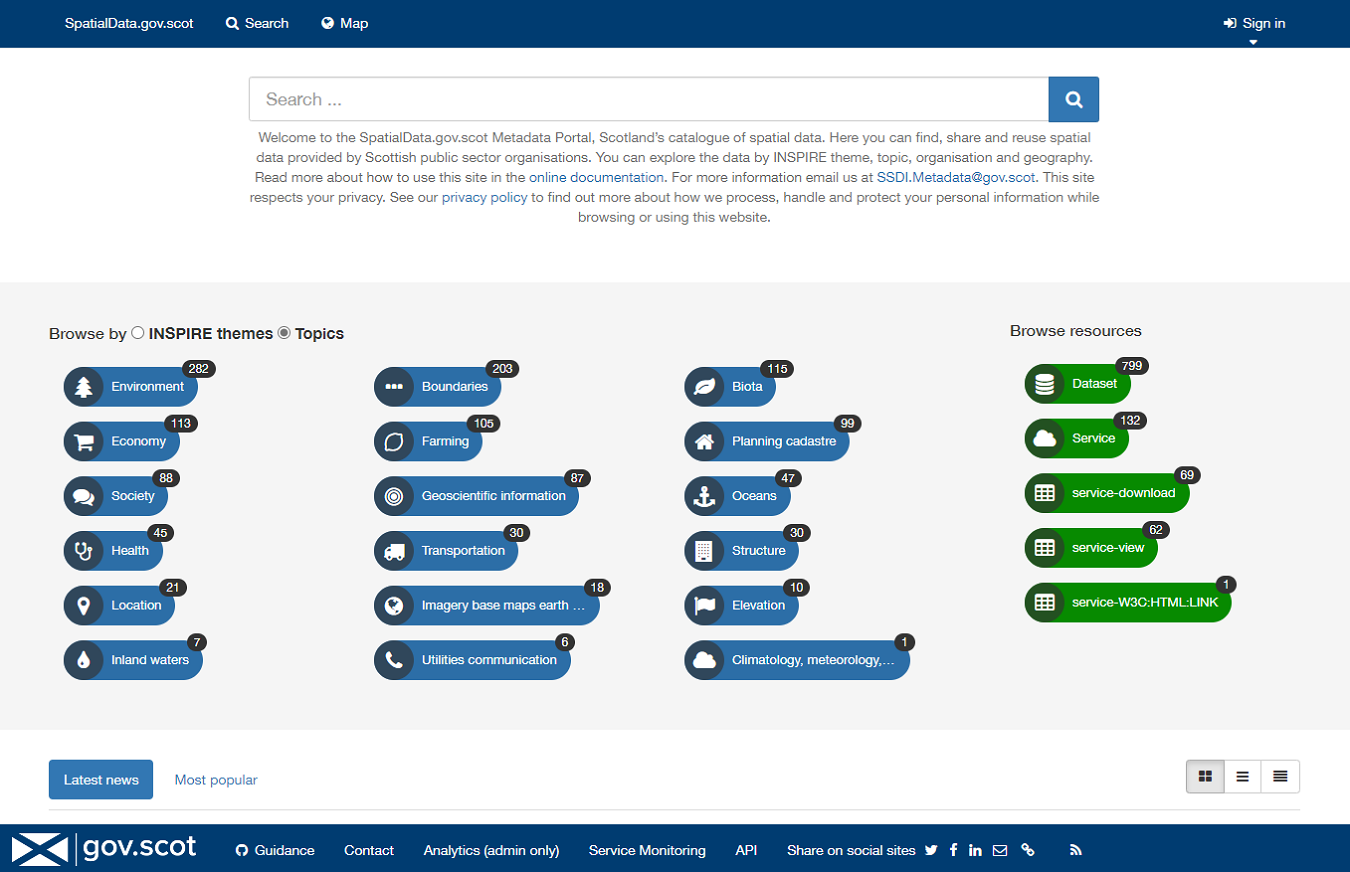
Figure 2.1.1: Home page
When logged in, registered users of the site will be presented with further buttons on the header menu for  and
and  (for user and site administrators).
The menu gives options to navigate to the Editor board, add a new record,
import new records, manage directory,
batch editing and access rights.
(for user and site administrators).
The menu gives options to navigate to the Editor board, add a new record,
import new records, manage directory,
batch editing and access rights.
Basic searching
Quick searches on the portal can be performed directly from the home page using the search box and clicking the search button ( ).
).
Note: wildcard characters, such as the asterisk key, can also be used.

Figure 2.2.1: A basic search from the home page
This will take the user to the main search panel, showing the resulting records in the centre of the page, with additional filtering options to the
left. The user can also access the main search panel by clicking  on the top menu of the home page. To the bottom right of the
page is a small map view showing the geographic extents of the queried results. This can be minimised by clicking the collapse button on the right of the map.
on the top menu of the home page. To the bottom right of the
page is a small map view showing the geographic extents of the queried results. This can be minimised by clicking the collapse button on the right of the map.
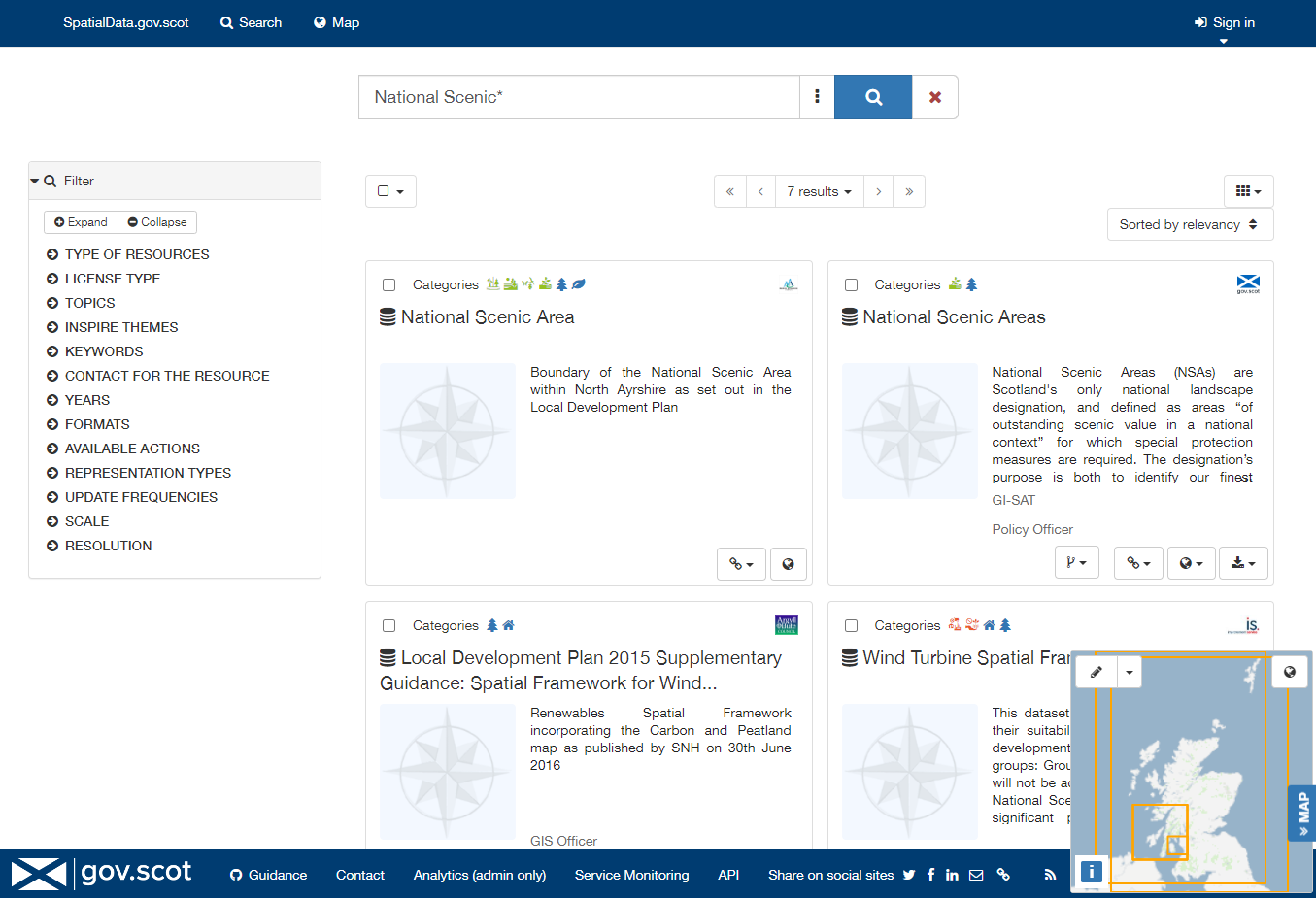
Figure 2.2.2: Search results displayed on the main search panel
Advanced searching
Other search options are available from the  icon to the right of the main search box. This expands to show Options, Languages and Advanced.
Options allows users to search by “Exact match”, “In title only”, and “Only my records” (if the user is logged in)
Languages allows users to limit the search based on the metadata language of a record by searching “in all languages”, “in detected language”, or “in UI language”
Advanced allows users to limit the search based on the temporal coverage of a record.
To perform an advanced search:
1| Click
2| Click the
3| Provide additional search criteria (e.g. constraining by exact match, language or temporal extent).
4| Click
Note: search options can be cleared by clicking
.
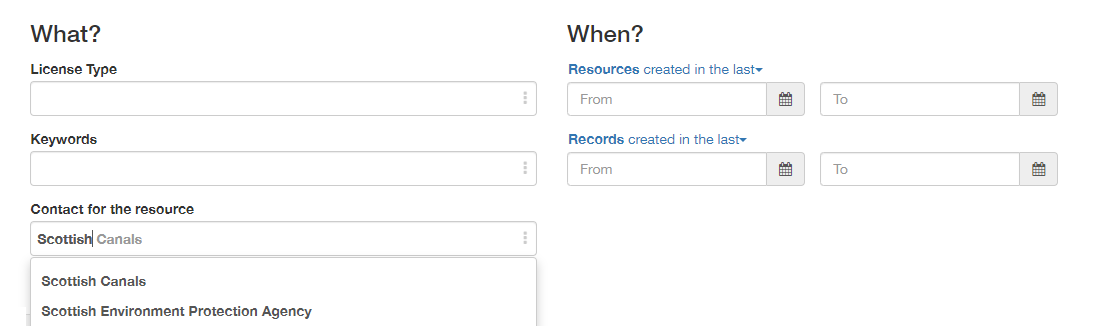
Figure 2.3.1: Advanced search options
Filter and sort options
Search results can be limited using the options available in the left-hand panel. Each search filter shows the number of records returned next to it. Filtering options available are as follows:
Type of resources (e.g. datasets or services)
Licence Type
Topics
INSPIRE Theme
Keywords
Organizations
Years (grouped in 5-year intervals)
Formats
Available in
Spatial Representation Type (i.e. raster or vector)
Update Frequencies
Scales
At the top right of the search results list, there is a menu to sort the results by title, relevance, date of change, rating, popularity, and scale. At the top left of the results list users can select all results, all results on the current page, or none to deselect. Upon selection users can choose to export the results to a zip, pdf or csv file. Note that registered users will be able to perform additional actions, such as publish (if they have Reviewer privileges) or delete (if they have Editor privileges), on selected records.
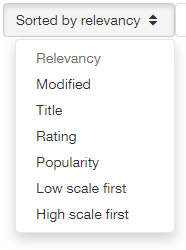
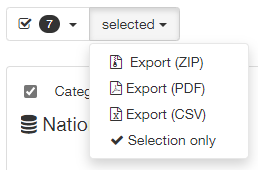
Figure 2.4.1: Sort and select options